Jenkins LTS Rootfs: CI Server Image Build and Integration for the Iximiuz Labs
Context
Jenkins LTS Rootfs is a production-grade Jenkins CI server image for iximiuz playgrounds. It boots Jenkins via systemd, with Nginx as a reverse proxy and cloudflared pre-installed for instant public access over a Cloudflare Tunnel.
MicroVM Rootfs
This image is a microVM rootfs for the iximiuz Labs platform. The platform mounts it as a block device and boots it with its own kernel. systemd becomes PID 1 through the platform boot process. Do not attempt to validate systemd, Docker daemon, or service behavior via docker run: use labctl instead (see Verification).
Quick Start
Skip the build and try it now: Launch Jenkins Server↗. Click Start, and Jenkins boots behind Nginx in the browser in under two minutes. The rest of this page covers how the image itself is built.
Pipeline tools and plugins are intentionally NOT baked in. Two post-setup scripts are placed on PATH and run after the VM is live; this keeps the image lean.
All source artifacts:
| Artifact | Path |
|---|---|
| Dockerfile | iximiuz/rootfs/jenkins/Dockerfile |
| Scripts | iximiuz/rootfs/jenkins/scripts/ |
| Configs | iximiuz/rootfs/jenkins/configs/ |
| Welcome banner | iximiuz/rootfs/jenkins/welcome |
| CI Workflow | .github/workflows/build-jenkins-rootfs.yml |
| iximiuz Manifest | iximiuz/manifests/jenkins-server.yml |
Objectives
Jenkins LTS Rootfs must:
- Provide a Jenkins LTS instance running on top of
ubuntu-24-04-rootfswith systemd as PID 1. - Start services in boot order:
lab-init→nginx→jenkins, making Jenkins available on port 80 via Nginx immediately on first boot. - Configure Nginx as a reverse proxy using a build-time parameterized port (
__JENKINS_PORT__), with/healthendpoint and production-grade headers. - Provide a Cloudflare-ready environment via
cloudflaredso Jenkins can be exposed on a custom domain with SSL (no firewall rules needed). - Expose two post-setup scripts (
install-pipeline-tools,install-plugins) on/usr/local/bin/and never run them during the build. - Apply a limited
sudoprofile for thejenkinsdaemon user: enough to manage services and read logs, but not full root. - Be built reproducibly via GitHub Actions and published as
ghcr.io/ibtisam-iq/jenkins-rootfswithlatest,lts, and2.541.2-ltstags.
Architecture / Conceptual Overview
The image inherits the full OS base from ubuntu-24-04-rootfs (systemd, SSH, non-root user ibtisam, prompt, shell config) and adds a Jenkins runtime stack on top:
| Layer | Components |
|---|---|
| Inherited from base | systemd, SSH, user ibtisam, bash config, base tools |
| Runtime stack | Java 21 (OpenJDK), Jenkins LTS (jenkins user), Nginx reverse proxy, cloudflared |
| Systemd units | lab-init.service, nginx.service (override), jenkins.service |
| Security | Limited sudoers for jenkins daemon, no full root |
| Post-setup (user-run) | install-pipeline-tools, install-plugins |
Boot Sequence
systemd (PID 1)
  └── lab-init.service  [oneshot]
        Generates SSH host keys (ephemeral per VM)
        Creates /run/sshd, /run/nginx
        Fixes /var/lib/jenkins ownership
          ↓ (After=)
  └── nginx.service     [simple, daemon off]
        Listens on :80
        Reverse proxies → 127.0.0.1:JENKINS_PORT
          ↓ (After=)
  └── jenkins.service   [notify]
        /usr/bin/jenkins --httpPort=JENKINS_PORT
        Runs as jenkins:jenkins
        OOMScoreAdjust=-900 (protected from OOM killer)
Port Substitution
__JENKINS_PORT__ is a build-time placeholder substituted via sed during the Docker build in three files:
| File | What changes |
|---|---|
/etc/nginx/sites-available/jenkins | upstream jenkins { server 127.0.0.1:__JENKINS_PORT__ } |
/etc/systemd/system/jenkins.service | ExecStart=/usr/bin/jenkins --httpPort=__JENKINS_PORT__ |
$HOME/.welcome | Displayed URL in the welcome banner |
CI default: JENKINS_PORT=8080. Override with --build-arg JENKINS_PORT=<port>.
Key Decisions
Post-setup tools and plugins, not baked in: install-pipeline-tools and install-plugins are placed on PATH as callable scripts, not run during build. This keeps image size minimal and gives full control over what gets installed per environment.
Trivy pinned to v0.69.3: Trivy v0.69.4 was a confirmed supply-chain attack (CVE-2026-33634, March 19, 2026). The malicious binary exfiltrated secrets from CI/CD pipelines via compromised Aqua Security credentials. install-pipeline-tools pins v0.69.3: the last verified safe release. Reference: trivy/discussions/10425.
Systemd-first Jenkins: Jenkins runs as a real Type=notify systemd service with OOMScoreAdjust=-900, explicit LimitNOFILE/LimitNPROC, and Restart=always. This aligns the image with production behavior rather than a simple process.
Nginx as canonical entry point: All external traffic enters via Nginx on port 80. Jenkins only listens on a local port (127.0.0.1:JENKINS_PORT). Nginx normalizes headers, handles caching, exposes /health, and is the target for Cloudflare Tunnel HTTP mapping.
Limited sudo for the jenkins daemon: Instead of NOPASSWD:ALL, the sudoers entry gives Jenkins exactly what it needs: systemctl restart/stop/start/status jenkins, systemctl reload nginx, and journalctl. This limits blast radius if Jenkins is compromised.
lab-init.service runs before SSH, Nginx, and Jenkins: SSH host keys are deleted from the base image for security (each VM gets unique keys). lab-init.sh regenerates them at every boot via ssh-keygen -A. It also creates /run/sshd and /run/nginx, which are wiped by tmpfs on each reboot. Without this, sshd and nginx would fail to start.
CMD ["/lib/systemd/systemd"]: Jenkins rootfs is a service image. Unlike the Dev Machine workstation image, it includes a CMD so docker run can attempt to start systemd. Systemd will immediately report System has not been booted with systemd as init system in a plain Docker container: this is expected and correct. The image is purpose-built for microVM boot.
USER root at image end: Jenkins rootfs ends as USER root, unlike Dev Machine. This is intentional: the CMD ["/lib/systemd/systemd"] requires root because systemd must start as PID 1. When the iximiuz platform boots the microVM, it runs as root regardless: but the explicit USER root + CMD combination makes the intent unambiguous.
Source Layout
jenkins/
├── Dockerfile
├── README.md
├── welcome
├── configs/
│   ├── nginx.conf                      # Parameterized reverse proxy for Jenkins
│   ├── jenkins.service                 # Type=notify; ExecStart with __JENKINS_PORT__
│   ├── sudoers.d/
│   │   └── jenkins-user                # Limited sudo: service control + journalctl only
│   └── systemd/
│       └── lab-init.service            # oneshot: Before=ssh,nginx,jenkins
└── scripts/
    ├── install-jenkins.sh              # Installs Java 21 + Jenkins LTS
    ├── configure-nginx.sh              # Installs nginx, enables site, systemd override
    ├── lab-init.sh                     # SSH keys + /run dirs + jenkins home perms
    ├── healthcheck.sh                  # Build-time validation (8 sections)
    ├── customize-bashrc.sh             # Jenkins/Nginx aliases → ~/.bashrc
    ├── install-cloudflared.sh          # Cloudflare Tunnel CLI
    ├── install-pipeline-tools.sh       # Post-setup → /usr/local/bin/install-pipeline-tools
    └── install-plugins.sh              # Post-setup → /usr/local/bin/install-plugins
Build Arguments
| ARG | CI Default | Description |
|---|---|---|
USER | ibtisam | Interactive non-root user (inherited from base) |
JENKINS_PORT | 8080 | Jenkins HTTP port; substituted in service, nginx, welcome |
BUILD_DATE | From CI metadata-action | OCI label: image creation timestamp |
VCS_REF | github.sha | OCI label: git commit SHA |
Prerequisites
ghcr.io/ibtisam-iq/ubuntu-24-04-rootfs:latestbuilt and published (theFROMreference).- Local checkout of
github.com/ibtisam-iq/silver-stackwithiximiuz/rootfs/jenkins/available. - Docker Buildx available locally, or a GitHub Actions runner with
docker/setup-buildx-action. - For CI:
packages: writepermission to push to GHCR viasecrets.GITHUB_TOKEN.
Build Steps
1. Local Build
From iximiuz/rootfs/jenkins/:
docker build \
  --build-arg USER="ibtisam" \
  --build-arg JENKINS_PORT=8080 \
  -t ghcr.io/ibtisam-iq/jenkins-rootfs:latest \
  .
Note
BUILD_DATE and VCS_REF are injected by CI. Local builds do not require them.
The Dockerfile performs the following sequence in order:
Step 1: Inherit the base
FROM ghcr.io/ibtisam-iq/ubuntu-24-04-rootfs:latest: inherits systemd, SSH,ibtisamaccount, shell config, and base toolset.USER rootis set for all installation and configuration steps.- Build args declared:
USER,JENKINS_PORT,BUILD_DATE,VCS_REF. ENVsets:JENKINS_HOME,JENKINS_PORT,JAVA_HOME,PATH(Java bin prepended),TZ=UTC.
Step 2: Copy and parameterize configs
COPY configs/nginx.conf /etc/nginx/sites-available/jenkins→sedreplaces__JENKINS_PORT__.COPY configs/jenkins.service /etc/systemd/system/jenkins.service→sedreplaces__JENKINS_PORT__.COPY configs/sudoers.d/jenkins-user /etc/sudoers.d/jenkins-user: grants jenkins daemon limited sudo.COPY configs/systemd/lab-init.service /etc/systemd/system/lab-init.service: oneshot boot init.
Step 3: Copy build-time scripts
COPY scripts/ /opt/jenkins-scripts/+chmod +x *.sh: all scripts available for subsequent RUN steps.
Step 4: Install post-setup scripts on PATH
install-pipeline-tools.sh→/usr/local/bin/install-pipeline-tools(mode 0755)install-plugins.sh→/usr/local/bin/install-plugins(mode 0755)- These are not executed here: they are callable by the user after the VM is live.
Step 5: Install Java 21 + Jenkins LTS (install-jenkins.sh)
- Validates port argument.
- Installs
openjdk-21-jdk+fontconfigvia apt. - Adds Jenkins GPG key and LTS apt repository.
- Installs
jenkinspackage. - Creates
jenkinsuser directories:/var/lib/jenkins,/var/lib/jenkins/plugins,/var/lib/jenkins/workspace,/var/lib/jenkins/.ssh,/var/log/jenkins. - Sets ownership and permissions (
jenkins:jenkins).
Step 6: Configure Nginx (configure-nginx.sh)
- Installs
nginxvia apt. - Validates
/etc/nginx/sites-available/jenkinsexists (was COPY'd in Step 2). - Removes default Nginx site (
/etc/nginx/sites-enabled/default). - Enables Jenkins site:
ln -sf sites-available/jenkins sites-enabled/jenkins. - Creates systemd override
/etc/systemd/system/nginx.service.d/override.conf:Type=simple,ExecStart=/usr/sbin/nginx -g 'daemon off;'- This is required for systemd container compatibility: Nginx must run in foreground.
- Runs
nginx -tto validate config.
Step 7: Enable systemd units
This creates symlinks in/etc/systemd/system/multi-user.target.wants/. The healthcheck.sh validates these symlinks exist. Step 8: Build-time healthcheck (healthcheck.sh ${USER})
Validates 8 sections without starting any services (systemd is not running during build):
| Section | What is checked |
|---|---|
| 1. System Tools | curl, wget, git, vim present |
| 2. Java Installation | java and javac commands resolve |
| 3. Jenkins Installation | jenkins package, /var/lib/jenkins and its plugins/ directory, jenkins system user |
| 4. Nginx Configuration | /etc/nginx/sites-available/jenkins present |
| 5. Systemd Services | lab-init, ssh, nginx, jenkins symlinks in multi-user.target.wants/ |
| 6. SSH Configuration | /etc/ssh/sshd_config and /usr/sbin/sshd present |
| 7. User Configuration | interactive $USER account exists |
| 8. File Permissions | /var/lib/jenkins is owned by jenkins |
If any check fails, the build fails with a non-zero exit.
Step 9: Install cloudflared (install-cloudflared.sh)
- Adds the official Cloudflare apt repository.
- Installs
cloudflared.
Step 10: Fix ownership
chown -R ${USER}:${USER} /home/${USER}: corrects ownership of any files root wrote into the non-root user's home.
Step 11: User customizations (order matters)
USER $USER+ENV HOME=/home/$USERCOPY welcome $HOME/.welcome→sed -ireplaces__JENKINS_PORT__in the banner.-
customize-bashrc.sh(bind mount): appends Jenkins and Nginx aliases to~/.bashrc:jenkins-status,jenkins-logs,jenkins-restart,jenkins-start,jenkins-stopnginx-status,nginx-logs,nginx-reload- Standard
ll,la,laliases
Step 12: Return to root + CMD
USER root: required becauseCMD ["/lib/systemd/systemd"]must start as root.EXPOSE 22 80 ${JENKINS_PORT}: documents SSH, Nginx, and internal Jenkins ports.CMD ["/lib/systemd/systemd"]: starts systemd as PID 1 when the microVM boots.
2. Build and Push via GitHub Actions
Canonical build: .github/workflows/build-jenkins-rootfs.yml
Triggers:
pushtomainwhen files underiximiuz/rootfs/jenkins/**(excludingREADME.md) or the workflow file change.- Pull requests touching the same paths.
- Manual
workflow_dispatch.
Key steps:
- Checkout repository.
- Set up Docker Buildx (no QEMU: amd64 only, intentional).
- Log in to GHCR via
secrets.GITHUB_TOKEN. - Extract metadata via
docker/metadata-action: generates tags and OCI labels:- Tags:
latest,lts,2.541.2-lts(all on default branch),sha-<short>,YYYY-MM-DD - Labels include:
org.opencontainers.image.base.name=ghcr.io/ibtisam-iq/ubuntu-24-04-rootfs:latest
- Tags:
docker/build-push-actionwith:context: ./iximiuz/rootfs/jenkinsplatforms: linux/amd64push: true(non-PR only)build-args: USER=ibtisam,JENKINS_PORT=8080- GHA layer cache enabled.
- Print final image digest.
Note
BUILD_DATE and VCS_REF are not passed as build-args in the current workflow. This means the org.opencontainers.image.created and org.opencontainers.image.revision OCI labels in the Dockerfile LABEL block will be empty strings. The docker/metadata-action does inject these into image labels via its own mechanism, but the Dockerfile ARG interpolation in the LABEL block will be blank. This is a known gap: the workflow should pass BUILD_DATE and VCS_REF as explicit build-args.
Verification
✅ Correct: Inspect the Registry Image
After CI push or local docker push:
skopeo inspect docker://ghcr.io/ibtisam-iq/jenkins-rootfs:latest \
  | jq '{
      name: .Name,
      title: .Labels["org.opencontainers.image.title"],
      base: .Labels["org.opencontainers.image.base.name"],
      created: .Labels["org.opencontainers.image.created"],
      documentation: .Labels["org.opencontainers.image.documentation"],
      authors: .Labels["org.opencontainers.image.authors"]
    }'
✅ Correct: Binary and Config Presence Check (docker run: limited scope)
docker run with a shell confirms binaries, files, and symlinks are present. It does not validate runtime behavior (no systemd, no Jenkins, no Nginx, no SSH):
docker run --rm ghcr.io/ibtisam-iq/jenkins-rootfs:latest bash -c "
  java -version 2>&1 | head -1
  jenkins --version 2>/dev/null || dpkg -l jenkins | tail -1
  nginx -v 2>&1
  cloudflared --version

  echo '--- Systemd unit symlinks ---'
  ls /etc/systemd/system/multi-user.target.wants/ | grep -E 'lab-init|nginx|jenkins'

  echo '--- Post-setup scripts on PATH ---'
  ls -lh /usr/local/bin/install-pipeline-tools /usr/local/bin/install-plugins

  echo '--- Config files ---'
  grep 'proxy_pass' /etc/nginx/sites-available/jenkins
  grep 'httpPort' /etc/systemd/system/jenkins.service

  echo '--- Jenkins home ---'
  ls -la /var/lib/jenkins

  echo '--- Welcome banner ---'
  cat /home/ibtisam/.welcome
"
Note
Errors like System has not been booted with systemd as init system or Cannot connect to the Docker daemon when running these checks are expected and correct: they confirm the image is purpose-built for microVM use, not Docker containers.
✅ Correct: Full Runtime Verification (iximiuz microVM)
The only valid way to verify the full stack (systemd, Jenkins, Nginx, SSH) is to boot in an iximiuz microVM:
# Step 1: ensure labctl is installed and authenticated
labctl auth whoami

# Step 2: download the manifest
curl -fsSL https://raw.githubusercontent.com/ibtisam-iq/silver-stack/main/iximiuz/manifests/jenkins-server.yml \
  -o jenkins-server.yml

# Step 3: create the playground
labctl playground create --base flexbox SilverStack-jenkins-server -f jenkins-server.yml
Once the VM is running, connect via the terminal tab or labctl ssh jenkins-server, then:
# --- System health ---
systemctl is-system-running          # Expected: running
systemctl status lab-init            # Expected: active (exited): oneshot complete
systemctl status nginx               # Expected: active (running)
systemctl status jenkins             # Expected: active (running)
systemctl status ssh                 # Expected: active (running)

# --- Jenkins accessible ---
curl -s -o /dev/null -w "%{http_code}" http://localhost:80/login
# Expected: 200 (or 403 if setup wizard is complete)

curl -s http://localhost:80/health
# Expected: healthy

# --- Initial admin password (for setup wizard,) ---
sudo cat /var/lib/jenkins/secrets/initialAdminPassword

# --- Aliases available ---
alias | grep jenkins-
alias | grep nginx-
❌ Not Valid: docker run for systemd or service checks
Attempting systemd or service checks via docker run will produce:
This is expected and correct, not a bug. Even with --privileged, a plain Docker container cannot replicate the microVM boot model. Use the iximiuz microVM for all service-level verification.
Integration with iximiuz Labs
Quickest path
Open the playground directly in the browser and click Start Playground: https://labs.iximiuz.com/playgrounds/SilverStack-jenkins-server-63fe430c No local tools required. The labctl steps below are for launching via manifest.
Prerequisites
Before proceeding, ensure the following are in place on the machine from which labctl commands will run:
labctlis installedlabctlis authenticated Verify the session:
Step 1: Create the playground
Download the manifest directly without cloning the full repository:
curl -fsSL https://raw.githubusercontent.com/ibtisam-iq/silver-stack/main/iximiuz/manifests/jenkins-server.yml \
  -o jenkins-server.yml
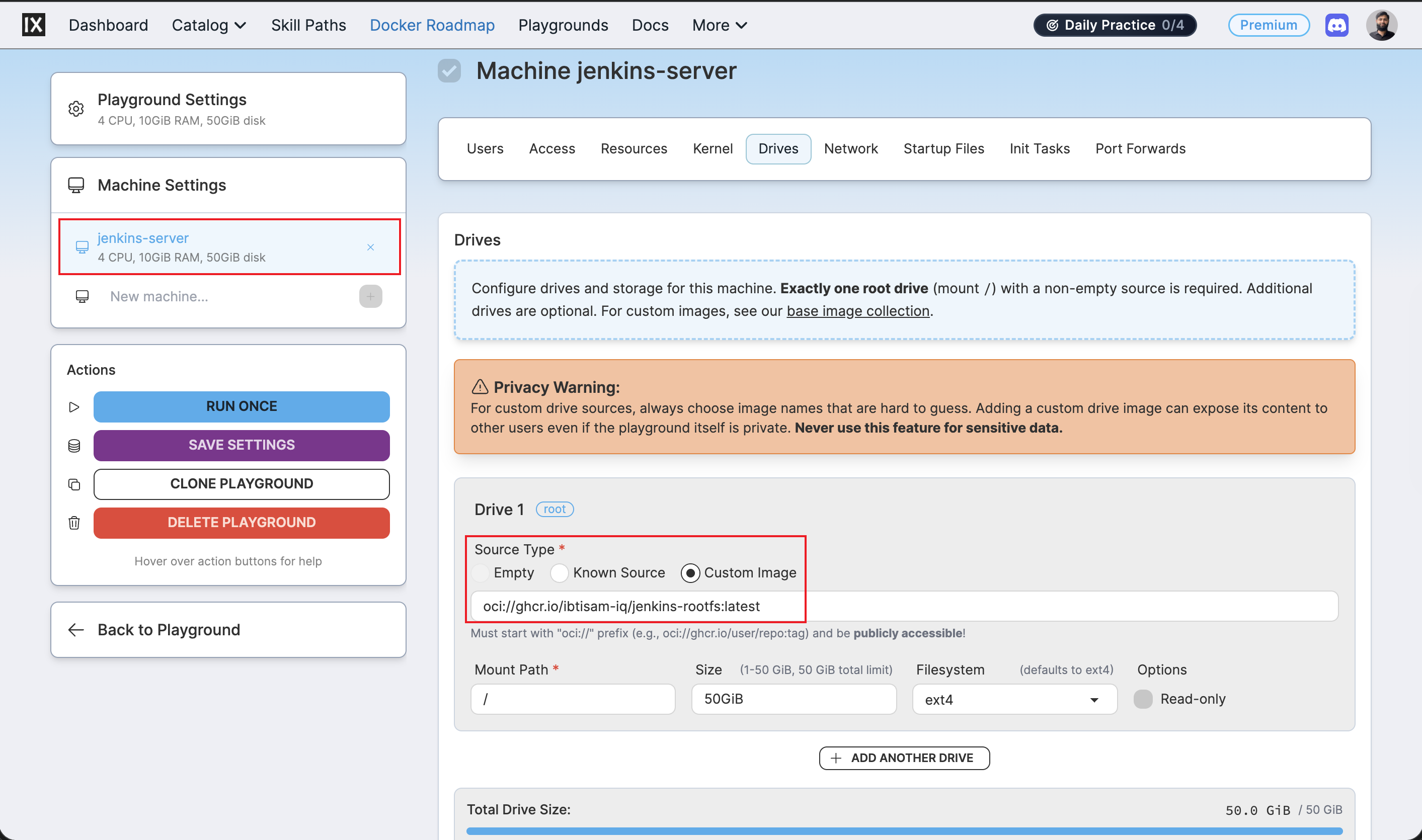
The manifest declares a single machine jenkins-server whose root drive is mounted directly from the published GHCR image:
The manifest can be edited before running: for example, to adjust cpuCount, ramSize, or size to match account quota or preferences.
Run labctl playground create pointing at the local manifest:
When the command succeeds, labctl prints the playground URL and its unique ID:
Creating playground from /Users/ibtisam-iq/gitHub/silver-stack/iximiuz/manifests/jenkins-server.yml
Playground URL: https://labs.iximiuz.com/playgrounds/SilverStack-jenkins-server-63fe430c
SilverStack-jenkins-server-63fe430c
Note
The playground does not appear under Playgrounds → Running. Custom playgrounds created via labctl appear under Playgrounds → My Custom.
Step 2: Open the playground
Click the URL printed by labctl, or navigate manually:
- Open labs.iximiuz.com/dashboard.
- In the dashboard navigation bar, click Playgrounds.
- Under Playgrounds, click the My Custom tab.
- Locate the playground by the
titleset in the manifest file (e.g.,SilverStack Jenkins Server). If the manifest title was customized before running, look for that name instead. - The playground card shows a Start button and a three-dot menu (⋮).
To start immediately, click Start.
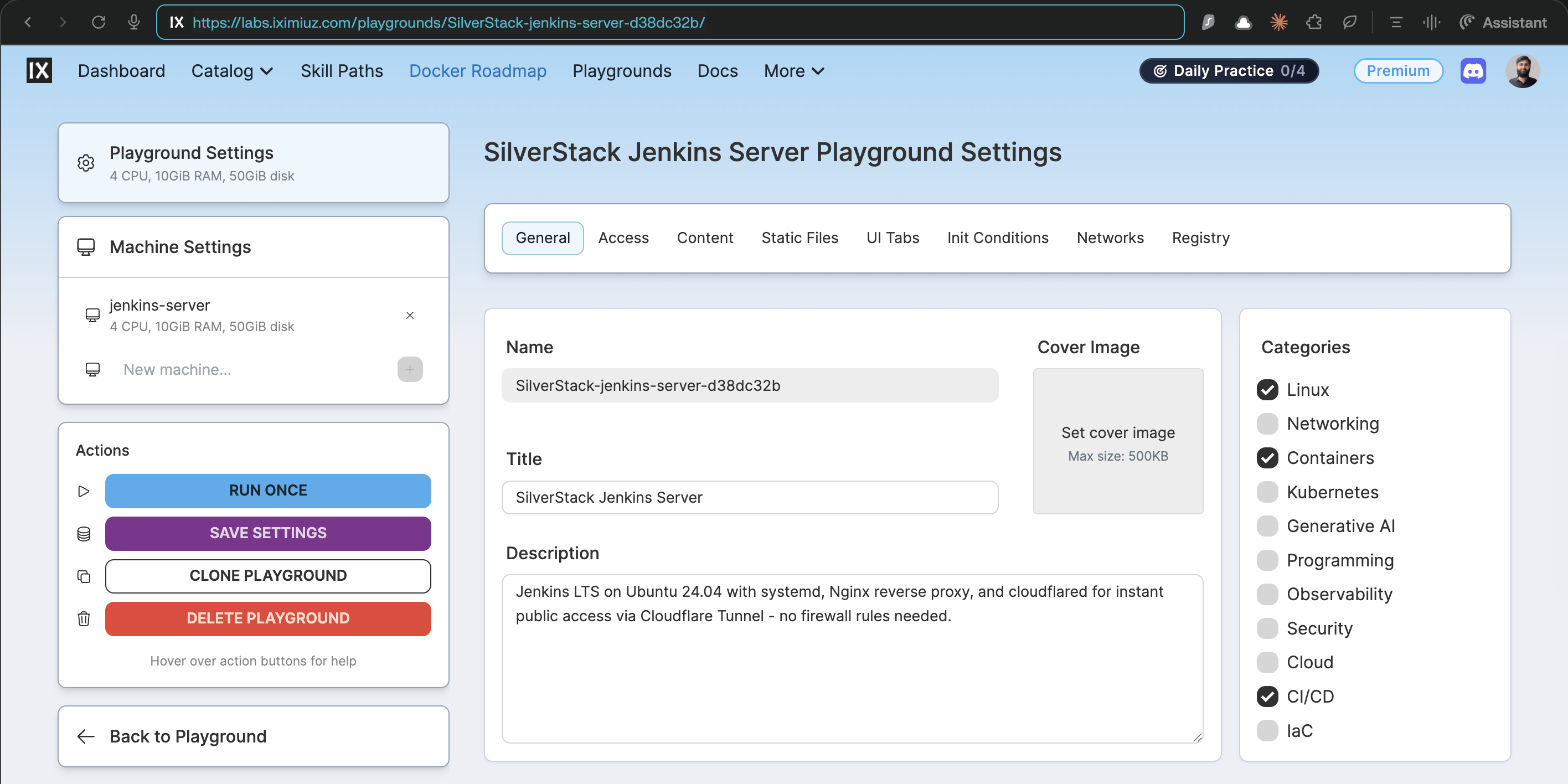
To review or adjust settings before starting, click ⋮ → Configure. This opens the Playground Settings page where machine drives, resources, network, and UI tabs can be inspected before launch.
Step 3: Verify the running playground
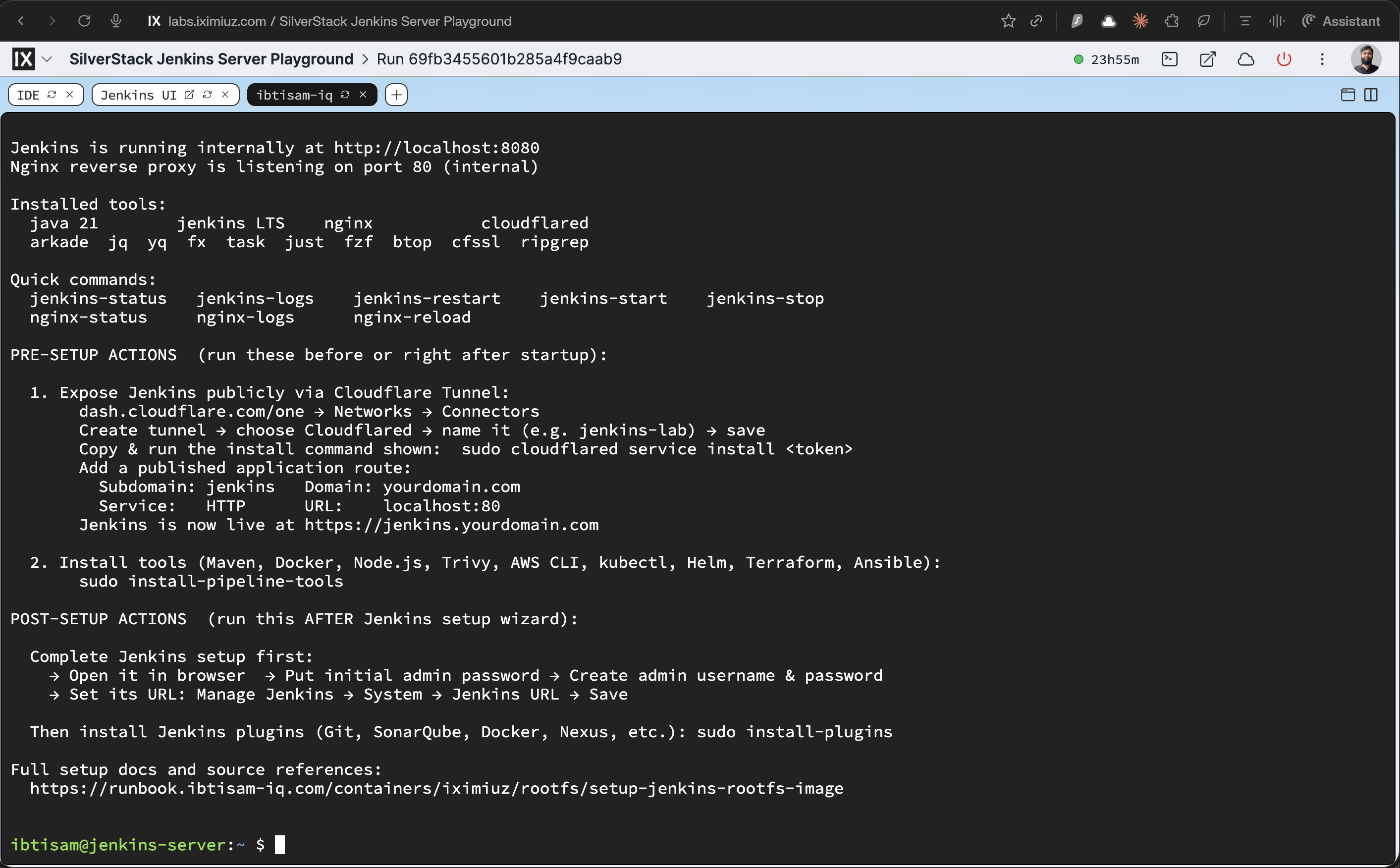
Once started, the welcome banner is displayed automatically and shows the configured internal ports, service status commands, and next steps.
Follow the instructions in the welcome file for post-setup tasks.
Cloudflare Tunnel Configuration
To expose the service on a custom public domain, cloudflared is already installed in the image. The welcome page includes step-by-step instructions for configuring and connecting the tunnel. Follow those instructions on first login.
If any issues arise during Cloudflare Tunnel setup, refer to phase 4 in the following runbook:
Related Reading
📖 self-hosted-cicd-stack-journey-from-ec2-to-iximiuz-labs.md